Setting up your Tablet
Setting up to get QR codes
The QR Code App runs on an iPad or an Android tablet. The setup is almost the same on both, where the steps differ, the iPad and Android instructions are side by side.
Initial Tablet Setup
Follow the setup process on your tablet to configure it.
I recommend allowing Location Services and allowing crash reports to be sent to the developers.
You'll need to make sure that the tablet has access to the internet. Connect to the most reliable network option you have.
| iPad | Android |
|---|---|
| You'll need an Apple ID to log in. (This should be your Dropzone's id - ideally linked to a phone controlled by the dropzone) |
You'll need a Google account to log in. (This should be your Dropzone's account - ideally linked to a phone controlled by the dropzone) |
| Open the App Store app and follow the prompts to sign in with your Apple ID. | Open the Play Store app and follow the prompts to sign in with your Google account. |
Install the QR Code App
Now you are signed in, install the QR Code App on your tablet.
| iPad | Android |
|---|---|
| Download Manifest App | Download Manifest App |
| or Type Link https://freefall.ing/apps/ios |
or Type Link https://freefall.ing/apps/android |
or Scan QR Code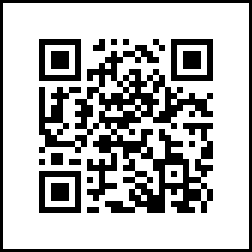 |
or Scan QR Code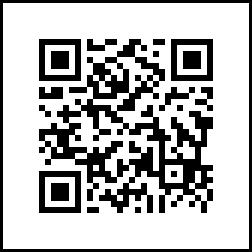 |
Tip: You can also run the 'QR Code App' directly on your Mac, iPhone or Android phone.
This can be a backup for your tablet, or just an extra place to generate QR codes.
Provide the App Token
You'll need an App Token to sign in to the app.
(An App Token is like a password for each app that connects to your account)
You can generate tokens here
Or read the app token section in Installing the Edit App
Tablet Configuration
I recommend removing almost all the apps from your tablet. This keeps it simple - and reduces confusion.
(On Android, some built-in apps can't be uninstalled - you can disable them in Settings > Apps instead.)
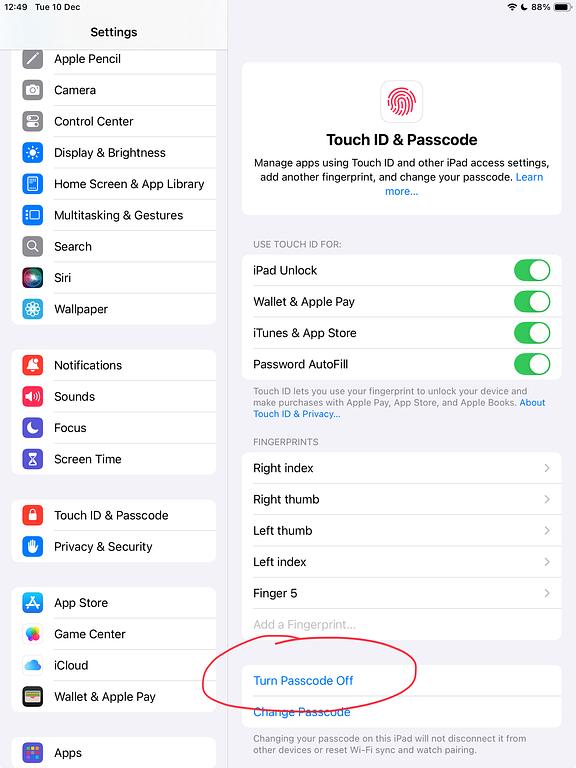
You can also turn off the passcode / screen lock in settings.
This is obviously less secure - but it's also a lot less annoying for your instructors every time they turn the tablet on to get a QR code...
Another Celebration :)