Installing the Remote Support App
This allows Rob to connect directly to your computer to help with any issues
This is an entirely optional step.
If you ever need help with an issue, then it provides a fantastic way for me to connect directly, see your screen, and 'Drive' if it is helpful.
There are a lot of permission alerts to click through, but they're all quite obvious.
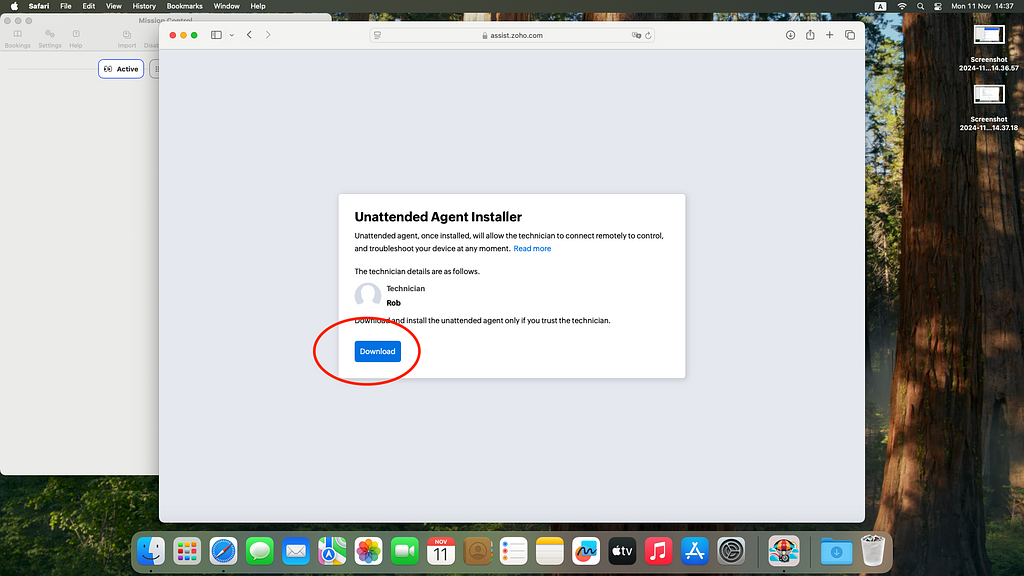
To install, open
https://freefall.ing/apps/remote_support
on the edit computer
(you can click on this article on the edit computer, or go to the 'App Links' page and follow the 'Remote support' install link there)
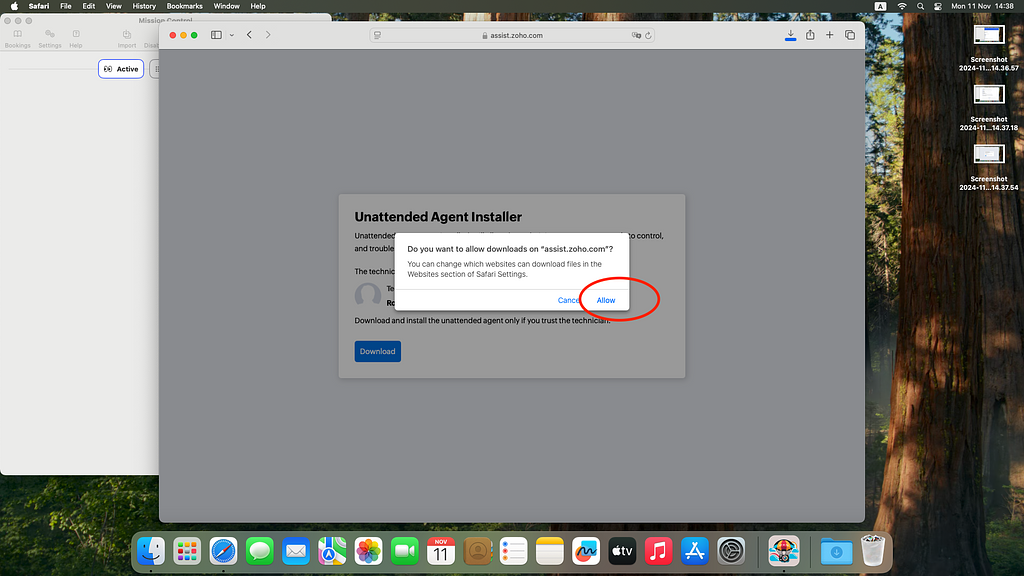
 Allow Downloads
 Open the Finder
Select the 'Downloads' folder on the right navigation
Double-Click on the ZohoAssistInstaller... 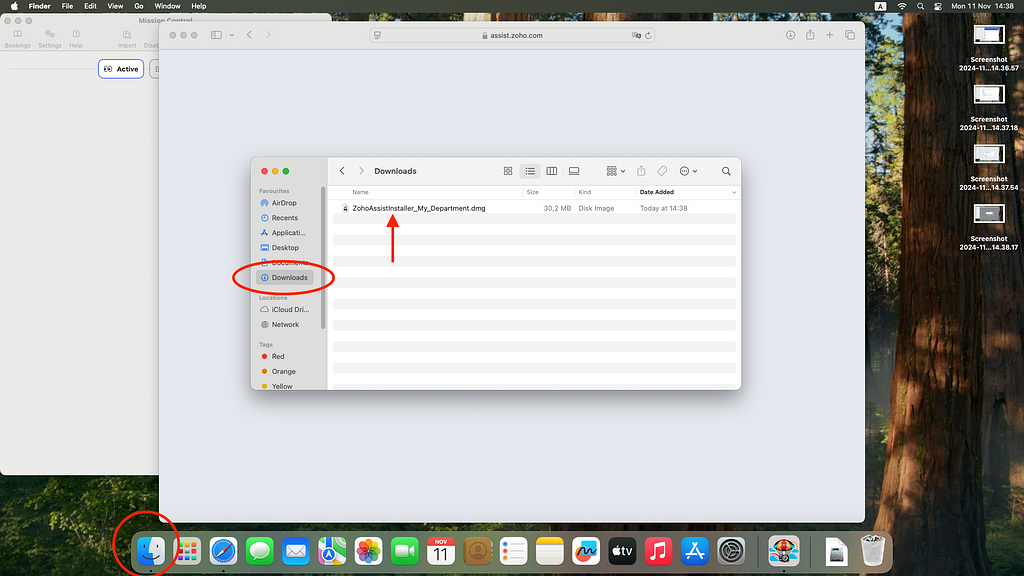 This pops up a window with the actual installer.
Double click on that.
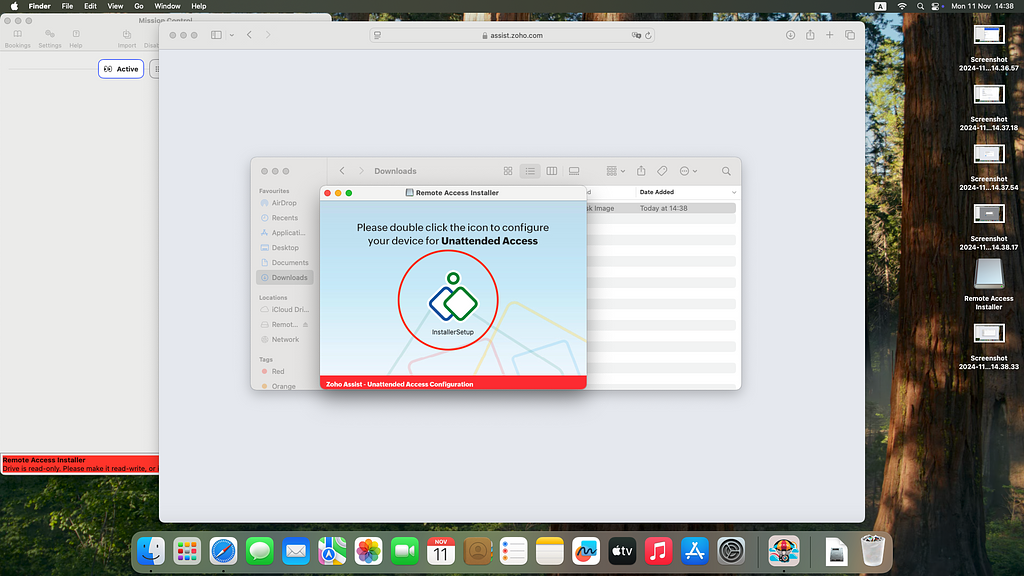 Give it permission to open
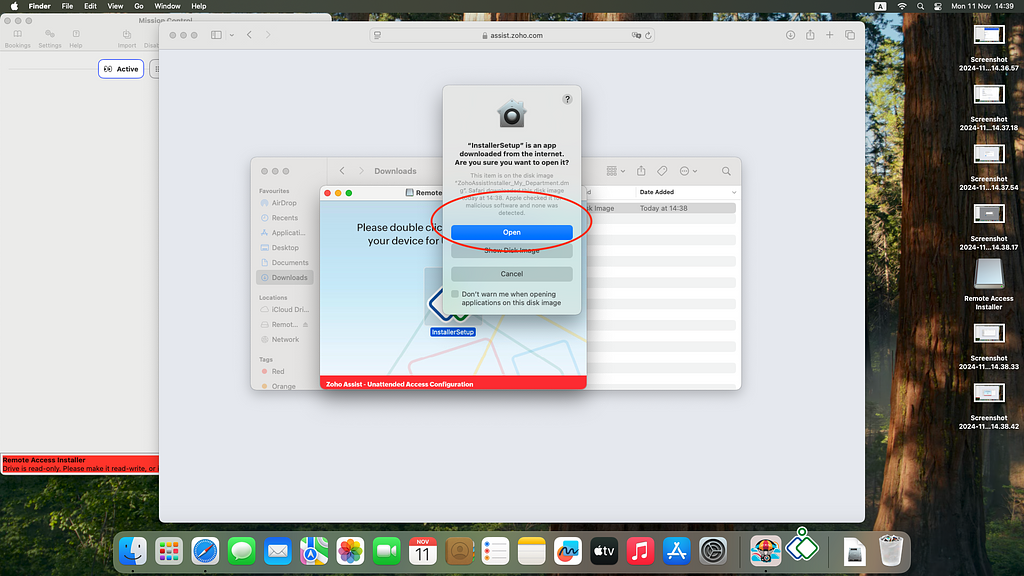 Enter your password.
(this is the password you use to set up the computer, and to unlock the computer. It is not your Apple ID password)
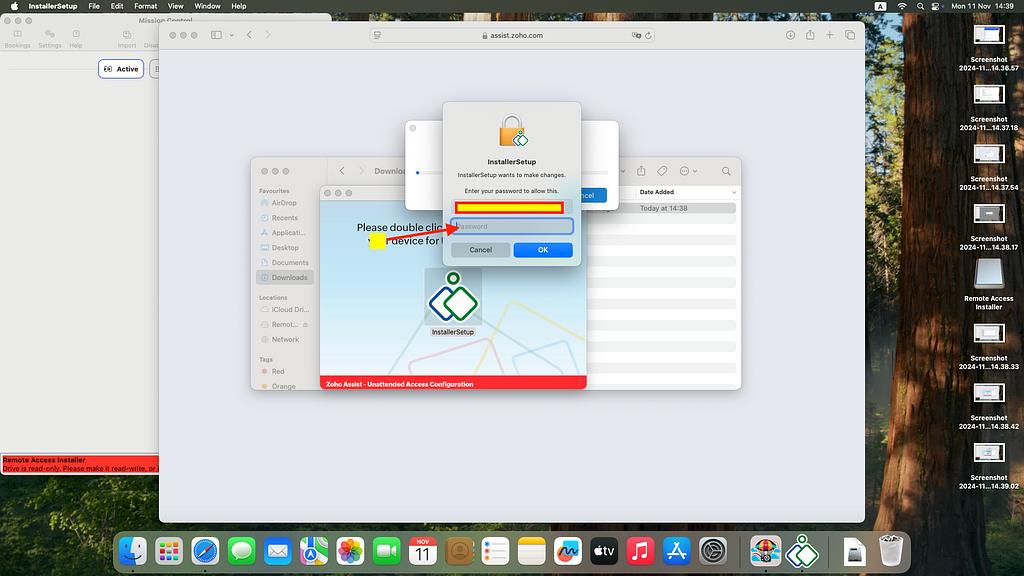 Open...
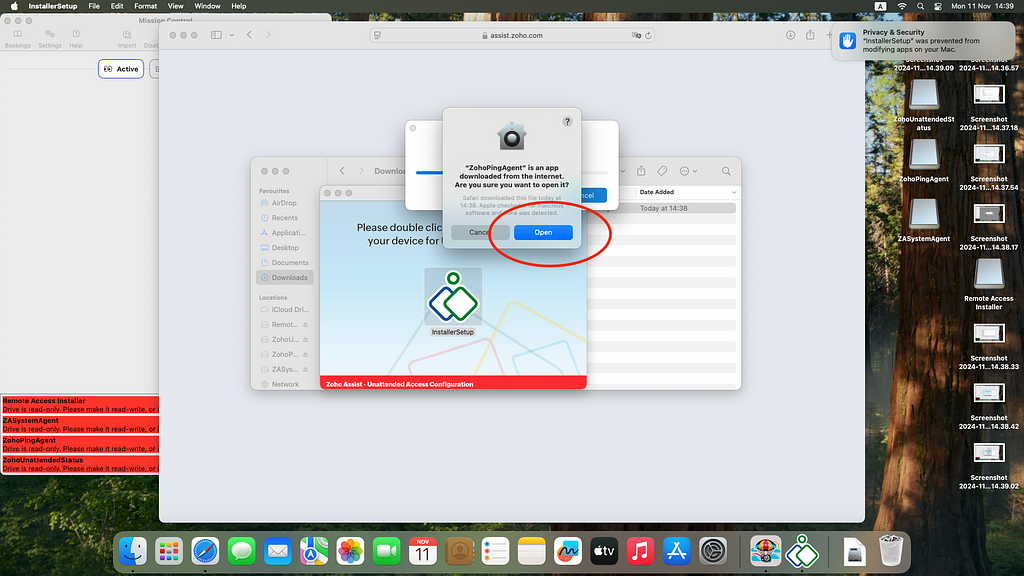
The next step is to let me know that you have installed the helper.
I'll try to connect - and that will kick off a flurry of permission requests...
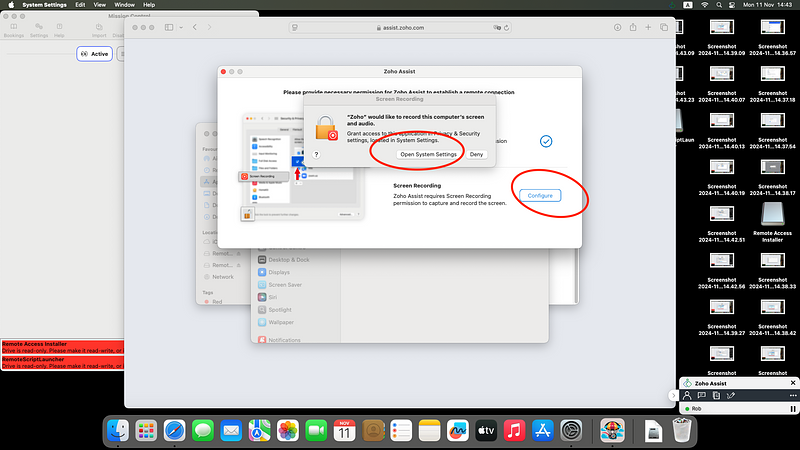
Allow everything...
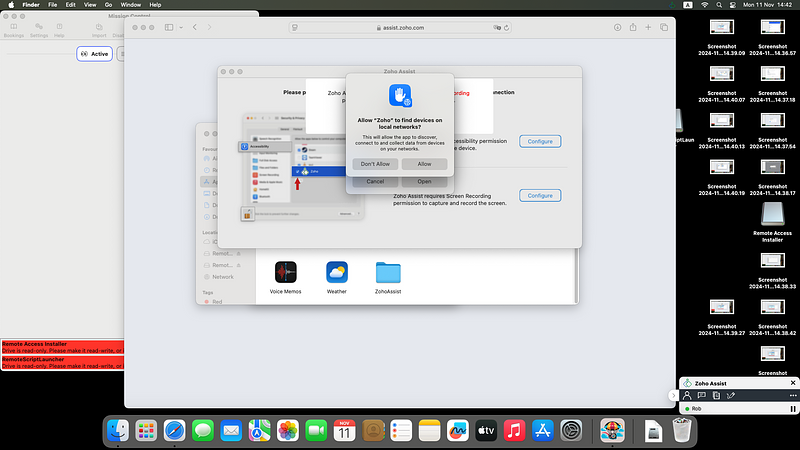
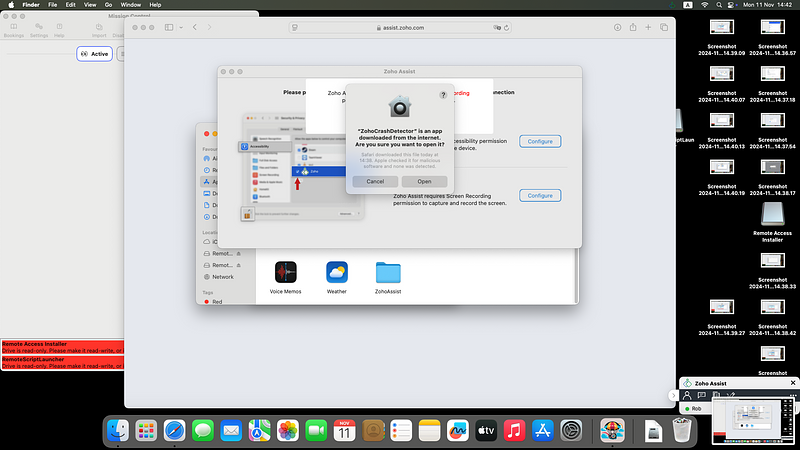
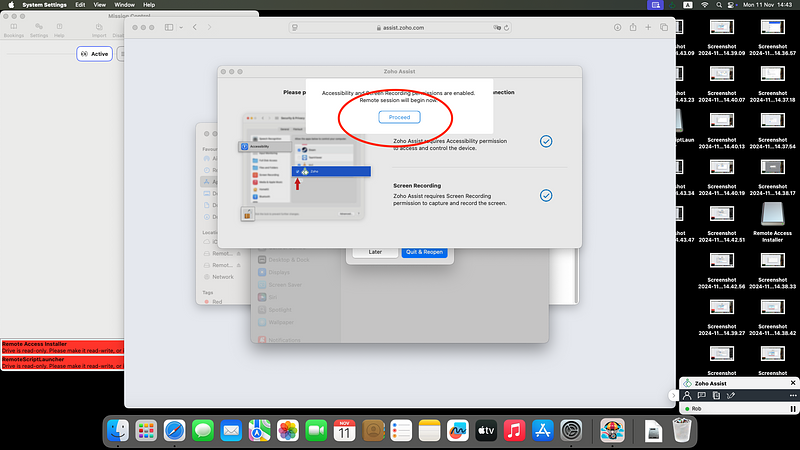
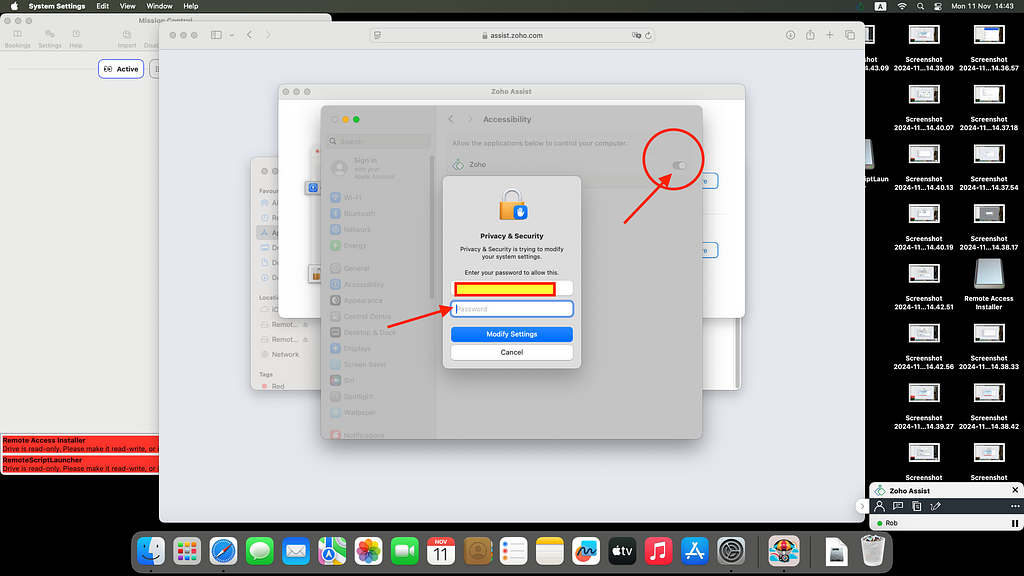
Follow the steps to give permissions
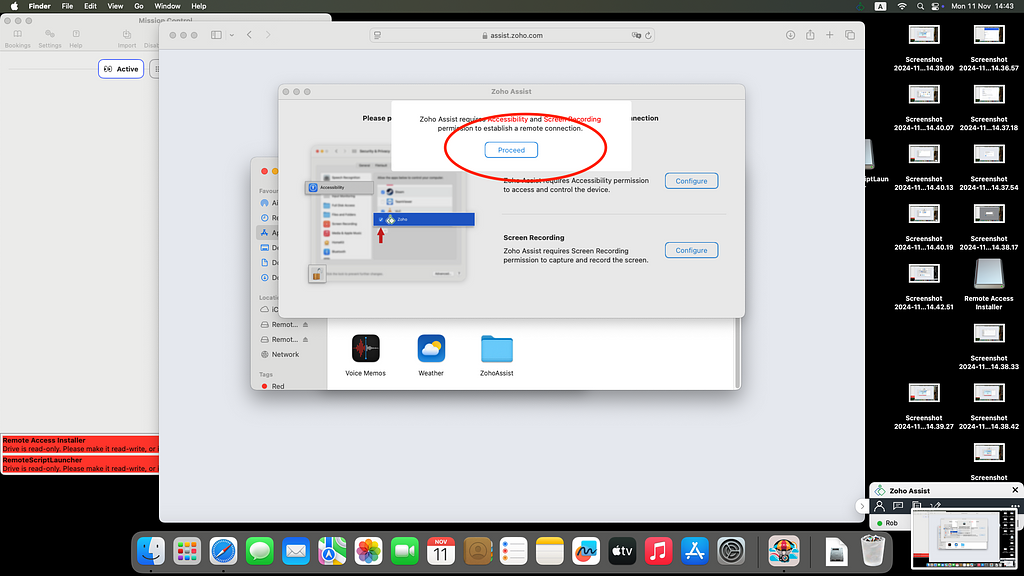
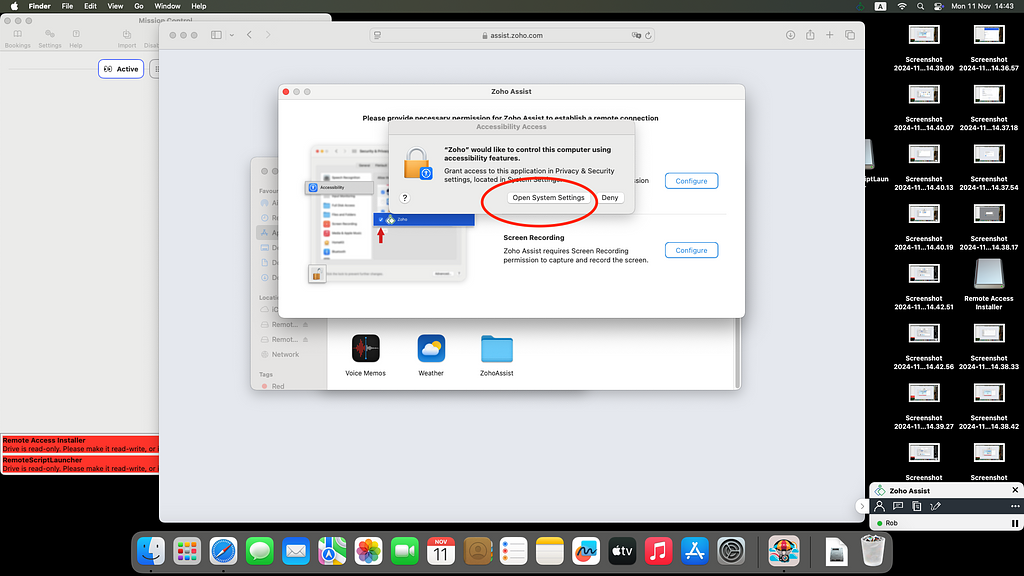 Turn on the switch to give Zoho accessibility permissions, and enter your password again
Next Permission
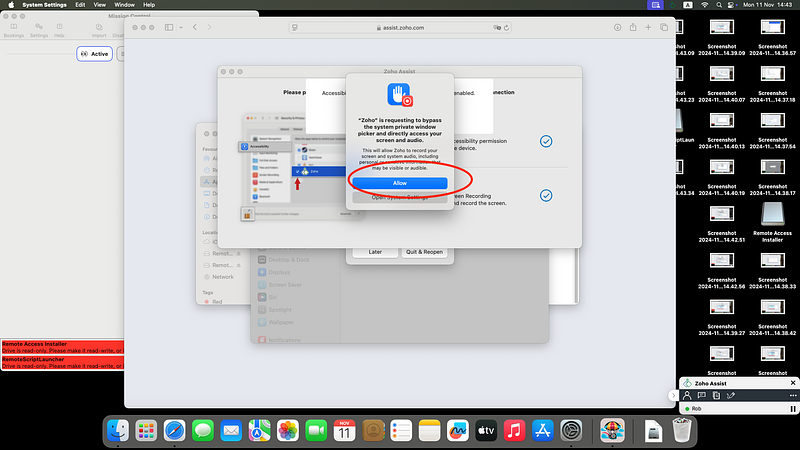
Finally we are Done!