Changing an Approved Jump
Unlocking a jump so you can change it, then approving it again
When you approve a jump, the edit app locks it. That stops anyone changing an edit by accident once it's been checked.
Unlocking a jump
To change a jump that has already been approved:
- Open the jump in the edit app.
- Click Unlock, next to
Jump is Approved and Locked, so you can't make changes
. - Make your change.
- Click Review, check the edit, and approve it again.
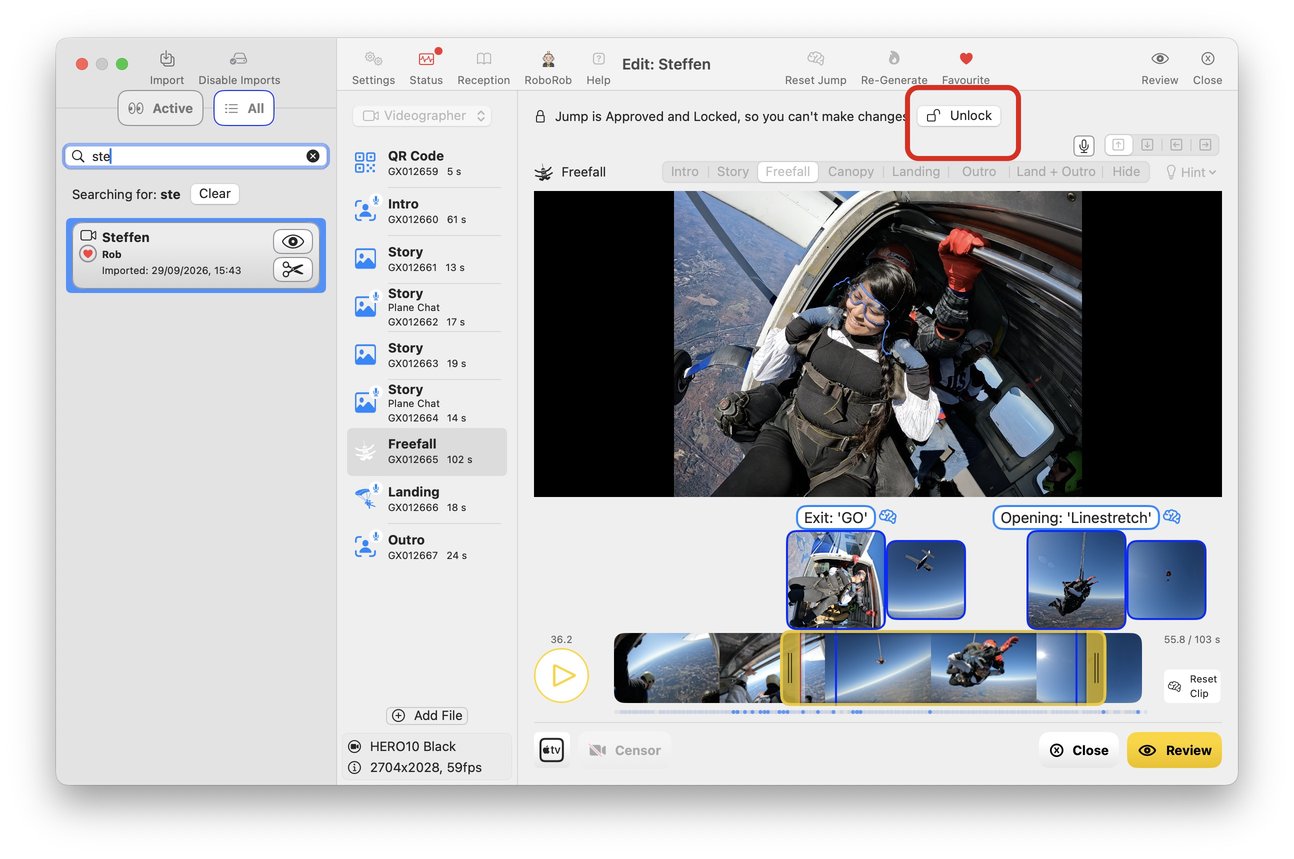
Unlocking un-approves the jump. Nothing new is delivered until you approve it again - so don't forget step 4.
Approving it again
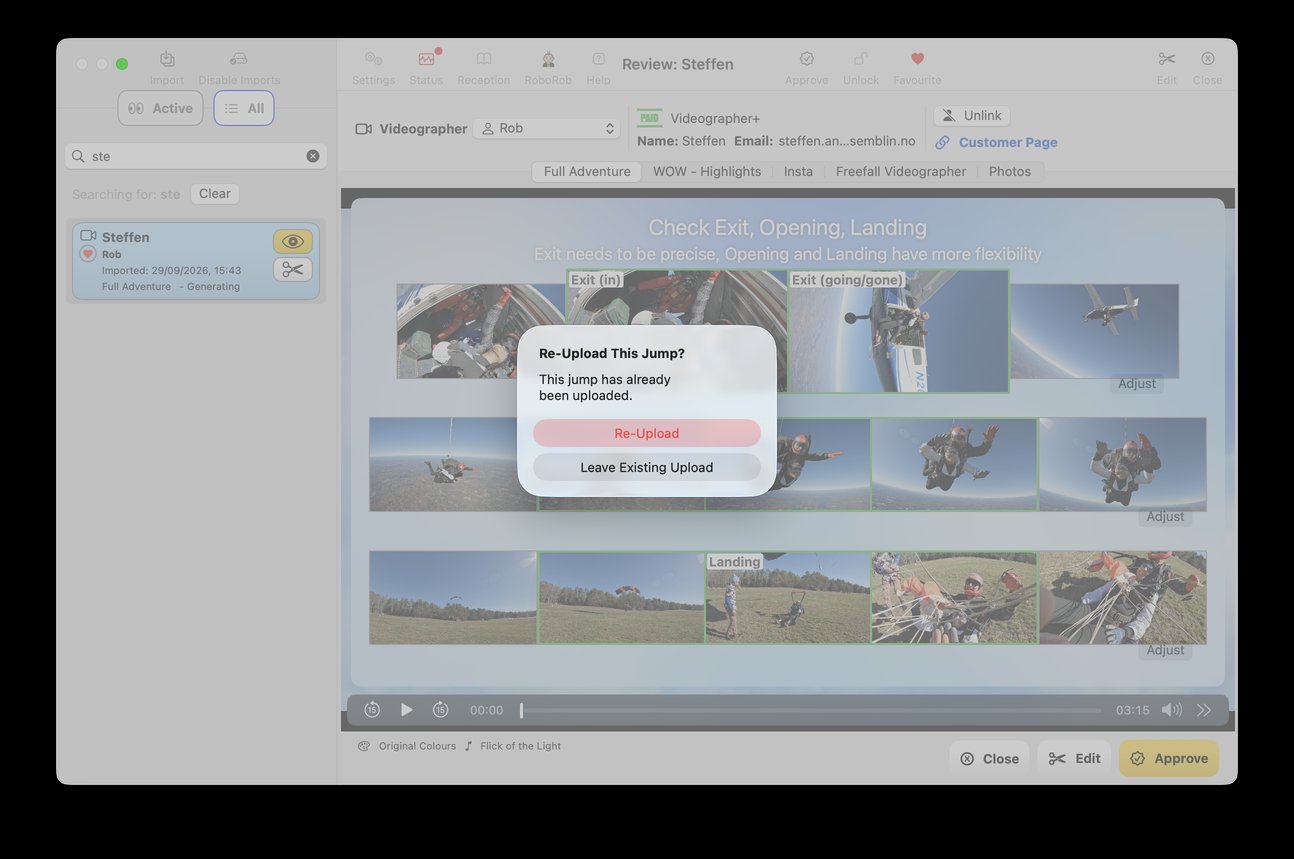
If the jump was already uploaded, approving it again asks whether to re-upload:
- Re-Upload - upload the jump again, with your changes.
- Leave Existing Upload - keep what has already been uploaded.
When you need to unlock
Only when the jump is already approved and you want to change it in the edit app. For example:
- Moving it to a different customer - see Wrong/No QR Code
- Changing clips, or moving the exit or landing markers
- Adding clips, censoring, Reset Jump or Re-Generate
When you don't
- The change is on the FreeFallFilms website, not in the edit app. Setting the product when a customer pays, correcting their email or phone, adding upgrades and resending are all changes to the booking, not the jump. You can do these on the website.
- Marking a favourite. You can do that after approving.